Convert an animated GIF to a three-second pair of JPG and MOV files, with local speed and key-photo controls.
Drop a GIF here
GIF · Up to 60 MB
Try a sample
Free · Private · No watermark
Make a Live Photo pair from an animated GIF
Open an animated GIF
Choose a GIF saved on your device, or click the built-in sample to open its animation.
Set speed and cover
Choose 0.5×, 1× or 1.5× and a key photo within the resulting three seconds.
Save the paired ZIP
Download it, open it in Files on iPhone and keep the JPG and MOV together when importing them.
Save the Live Photo pair and check it on iPhone
The ZIP is one download. Inside it are the still image and the matching MOV.
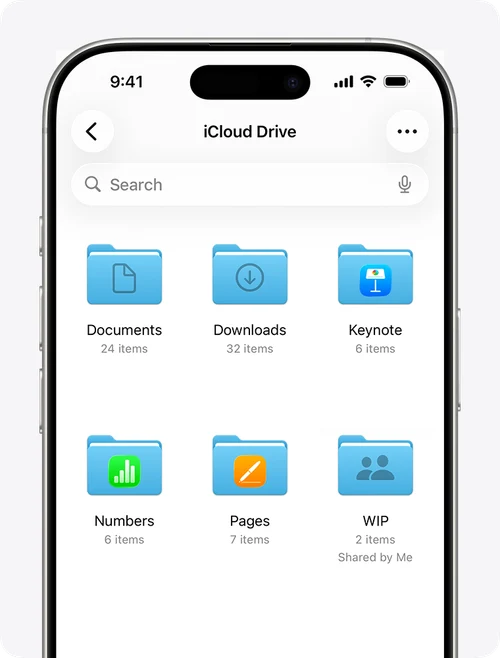
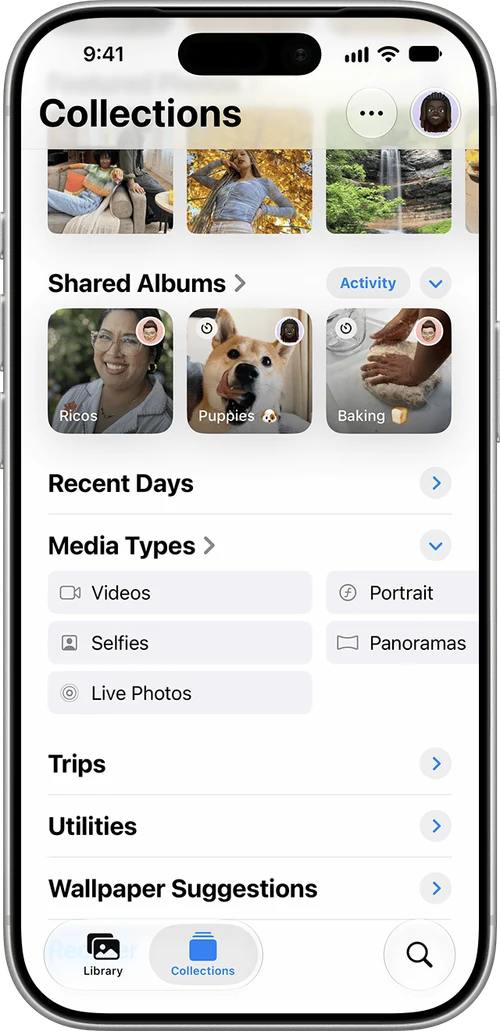
Files on iOS 26. Look for Downloads in your chosen storage location. Apple SupportPhotos on iOS 27. Use Media Types to find Live Photos and check playback. Apple Support
Find the download
Files → Browse → iCloud Drive → Downloads
Open the folder where Safari saved the ZIP. Tap the ZIP to unzip it.
Select both resources together
Select → Share
Select the JPG and MOV with the same name. If your share sheet offers an action to save them to Photos, try it. The options vary with iOS and the selected files.
Check the result in Photos
Photos → Collections → Media Types → Live Photos
Open the imported item and press and hold it. A successful native import appears as one Live Photo and plays when held.
If Photos shows a still and a video as separate items, the pair has not been imported as one Live Photo.
Turn a loop into a three-second clip
A short GIF works well when the motion is easy to see in a few frames, such as a flower swaying or lights drifting across a scene. The tool repeats the animation as needed to fill three seconds. A longer animation uses the first three seconds at the chosen speed. Set the speed before selecting the key photo, since the frame at a particular time changes when the loop speeds up or slows down.
A loop with a gentle start and end can look natural when repeated. Slow the playback for a fast gesture or choose 1× to stay close to the timing of the original GIF. The extra frames in the finished 30 fps movie follow the source animation and its timing.
Keep a useful still frame
Choose a position with the subject clear and the composition you want to see before playback. The key photo is included as a JPG in the ZIP, while the movement is encoded as a MOV. The conversion preserves the source framing within the output size limit, so choose a tall GIF if you want to keep its vertical composition.
GIF does not contain source sound. The output is silent and suitable for a short motion effect. For a clip where original audio is important, use Video to Live Photo instead.
Frequently Asked Questions
How long is the exported animation?
The output is three seconds at 30 fps. Short GIFs repeat until the end of the clip.
Can I slow an animated GIF down?
Yes. Choose 0.5×, 1× or 1.5×. Select the cover after adjusting the speed.
Will the GIF gain sound?
GIF contains no audio, so the Live Photo pair is silent.
Where are GIF files processed?
The browser decodes the GIF and creates the JPG and MOV on your device. The ZIP is downloaded locally.
How do I check whether the ZIP became a Live Photo?
Unzip it in Files on iPhone. Select both matching resources and use a compatible Photos import action when available. Look for one item with a LIVE badge and press and hold it. A separate JPG and video are still two items.
Can every result animate on the Lock Screen?
Wallpaper eligibility depends on the iPhone, iOS version and photo. First check that the pair appears as a playable item in Photos. Then choose it as a Live Photo wallpaper and check motion when the device wakes.