Turn an MP4, MOV or WebM into a three-second Live Photo pair. Choose the clip, key photo and audio, then save a local ZIP.
Drop a video here
MP4, MOV, WebM · Up to 60 MB
Try a sample
Free · Private · No watermark
Turn a video into a Live Photo pair
Choose a video
Select an MP4, MOV or WebM. A short phone video with a clear main subject is a good starting point.
Pick a moment and cover
Select the clip start when the video is longer than three seconds. Choose the cover, sound and optional 9:16 framing.
Download the ZIP
Unzip it in iPhone Files. Keep the JPG and MOV with the same basename together when using a Photos import workflow.
Save the Live Photo pair and check it on iPhone
The ZIP is one download. Inside it are the still image and the matching MOV.
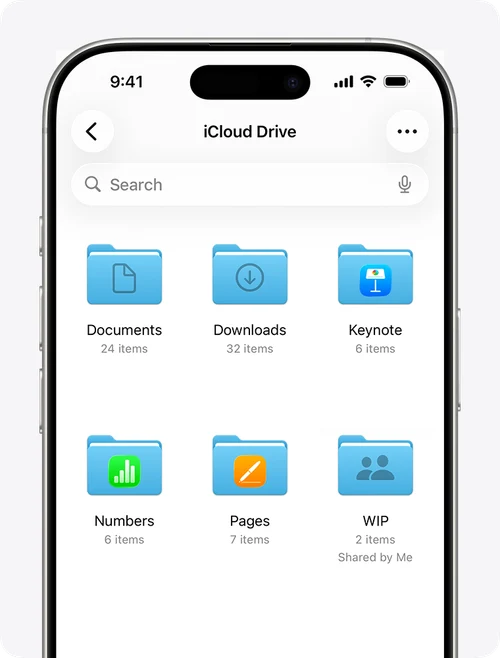
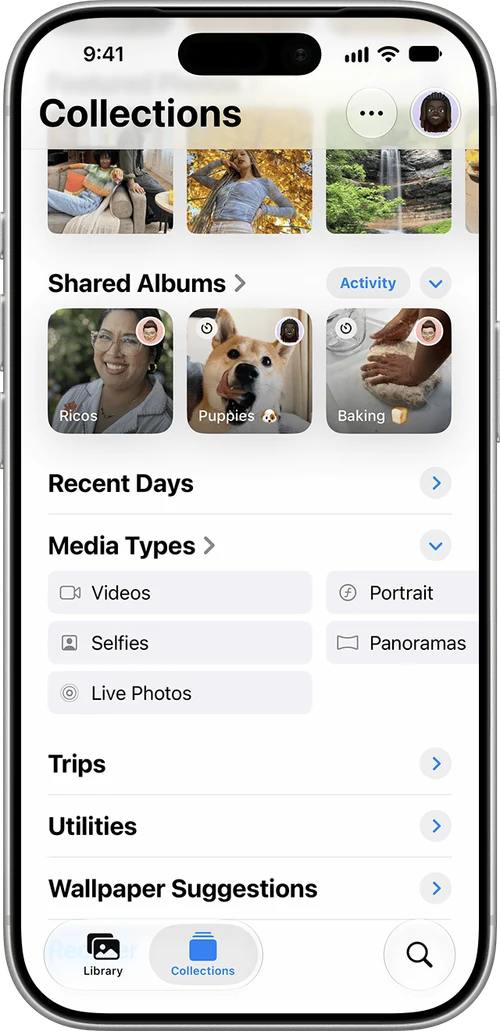
Files on iOS 26. Look for Downloads in your chosen storage location. Apple SupportPhotos on iOS 27. Use Media Types to find Live Photos and check playback. Apple Support
Find the download
Files → Browse → iCloud Drive → Downloads
Open the folder where Safari saved the ZIP. Tap the ZIP to unzip it.
Select both resources together
Select → Share
Select the JPG and MOV with the same name. If your share sheet offers an action to save them to Photos, try it. The options vary with iOS and the selected files.
Check the result in Photos
Photos → Collections → Media Types → Live Photos
Open the imported item and press and hold it. A successful native import appears as one Live Photo and plays when held.
If Photos shows a still and a video as separate items, the pair has not been imported as one Live Photo.
Pick the three seconds you want to keep
Choose the moment first. In a travel clip, the still might show the view from a bridge, and the motion might show how you approached it. When the browser can preview the source, use the start slider to position the three-second window. The key photo slider selects a frame within that window. If the source ends early, the final frame is held to fill the three seconds.
The source preview depends on the formats your browser can play. If a particular MOV or WebM does not play in the preview, you can still try the local encoder starting at the beginning. A clip containing a standard H.264 stream in MP4 is a practical input when you want reliable previews across devices.
Choose framing and sound
Preserve the source framing for most family or travel clips. A 9:16 crop fills a tall screen, but make sure anything important near the edges remains visible. The export includes a JPG key photo taken from the converted clip, so you can see the exact crop before downloading the ZIP.
Keep the original audio for a moment with a voice or useful ambient sound. Choose Mute for a quiet lock screen or clip without useful audio. The MOV and JPG are packaged as matching resources. The final Photos import result depends on the device and import action.
Frequently Asked Questions
What video files can I use?
Choose MP4, MOV or WebM up to 60 MB. The local engine handles supported streams and exports an H.264 MOV.
What happens to a short clip?
Its last frame is held up to three seconds. Longer clips are limited to the selected window.
Can I choose the cover and keep audio?
Yes. Pick a key frame within the output window, and leave the mute switch off to keep the input audio when available.
Does the exported movie fill the iPhone screen?
Choose 9:16 for a centered vertical crop, or keep the source aspect ratio. The downloaded cover shows the final crop.
How do I check whether the ZIP became a Live Photo?
Unzip it in Files on iPhone. Select both matching resources and use a compatible Photos import action when available. Look for one item with a LIVE badge and press and hold it. A separate JPG and video are still two items.
Can every result animate on the Lock Screen?
Wallpaper eligibility depends on the iPhone, iOS version and photo. First check that the pair appears as a playable item in Photos. Then choose it as a Live Photo wallpaper and check motion when the device wakes.