Animate a JPG, PNG, WebP or HEIC with subtle camera motion. Export a matched JPG and MOV as one ZIP in your browser.
Drop a photo here
JPG, PNG, WebP, HEIC or HEIF · Up to 35 MB
Try a sample
Free · Private · No watermark
Make a Live Photo from a still image
Choose a still photo
Use a JPG, PNG, WebP, HEIC or HEIF image. Pick a sample to try motion without selecting a personal file.
Preview your motion
Choose a camera move and intensity. Keep the original framing or preview a vertical 9:16 crop.
Save the paired files
Download the ZIP, unzip it in iPhone Files, and keep the JPG and MOV together when you try importing them to Photos.
Save the Live Photo pair and check it on iPhone
The ZIP is one download. Inside it are the still image and the matching MOV.
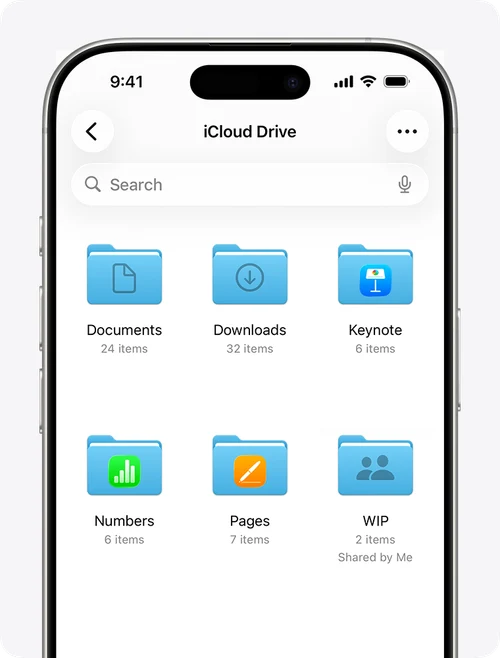
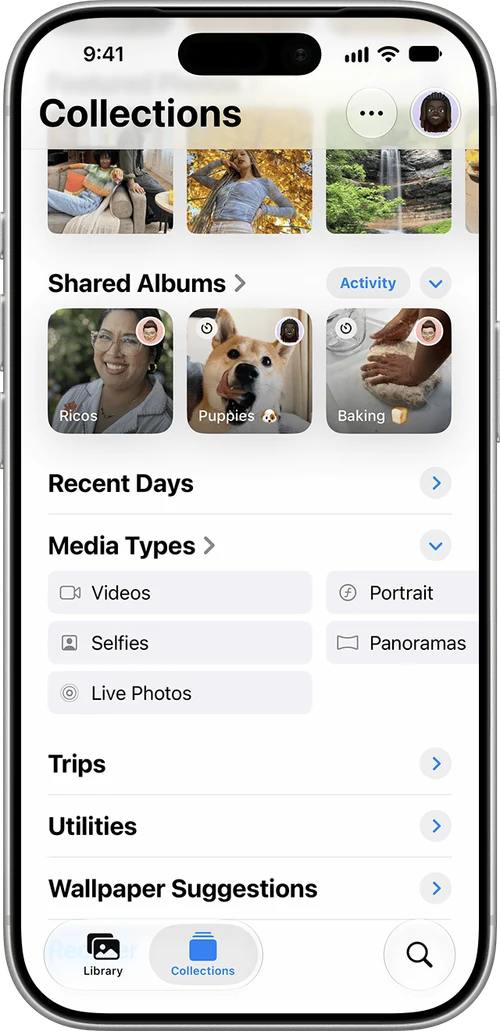
Files on iOS 26. Look for Downloads in your chosen storage location. Apple SupportPhotos on iOS 27. Use Media Types to find Live Photos and check playback. Apple Support
Find the download
Files → Browse → iCloud Drive → Downloads
Open the folder where Safari saved the ZIP. Tap the ZIP to unzip it.
Select both resources together
Select → Share
Select the JPG and MOV with the same name. If your share sheet offers an action to save them to Photos, try it. The options vary with iOS and the selected files.
Check the result in Photos
Photos → Collections → Media Types → Live Photos
Open the imported item and press and hold it. A successful native import appears as one Live Photo and plays when held.
If Photos shows a still and a video as separate items, the pair has not been imported as one Live Photo.
How to make a photo live
A small camera move works well for portraits, street scenes and still images that already have a clear point of interest. Choose Gentle Zoom In for a portrait, or try Soft Drift if layers such as a foreground branch and a distant hill make the movement easy to see. Start at low intensity and watch the whole three-second preview. A subject near an edge may move out of the frame when the image scales.
The atmosphere menu adds an optional effect such as snow, bokeh or light leak. Choose a single effect that fits the photo. The file uses the image and the chosen motion, so it keeps the source useful even when you decide to try a different crop or amount of movement.
Frame an image for the iPhone Lock Screen
Switch to the 9:16 preview and turn on the preview clock. Look for space at the top and make sure the main subject stays visible once the clip starts moving. Vertical framing crops around the center. A portrait with empty space above the subject usually works better than a tight landscape crop.
The clock appears in the preview to help you compose the shot. The export contains the photo and a short MOV with matching identifiers. The JPG is also useful as a plain still picture, while the MOV can be shared as an ordinary video if your recipient uses a different platform.
Frequently Asked Questions
Can I use a HEIC from my phone?
Yes. Choose HEIC or HEIF directly. When native decoding is unavailable, the browser loads the local HEIC decoder before opening the photo.
How long does the photo move?
The maker renders three seconds at 30 frames per second. The long edge is limited to 960 pixels to keep the download manageable.
Is the clock part of the export?
The clock is a framing aid in the preview. The picture and video in the ZIP contain the selected framing and motion.
Where is my photo processed?
The browser reads your image, renders the frames and creates the ZIP on your device. The video engine loads on demand.
How do I check whether the ZIP became a Live Photo?
Unzip it in Files on iPhone. Select both matching resources and use a compatible Photos import action when available. Look for one item with a LIVE badge and press and hold it. A separate JPG and video are still two items.
Can every result animate on the Lock Screen?
Wallpaper eligibility depends on the iPhone, iOS version and photo. First check that the pair appears as a playable item in Photos. Then choose it as a Live Photo wallpaper and check motion when the device wakes.