
How to set a Live Photo wallpaper
On iOS 17 or later, you can choose a compatible Live Photo as the Lock Screen wallpaper and let it animate when you wake your device. First open the candidate photo in Photos and play it there. Starting from a working Live Photo makes it easier to isolate wallpaper-specific problems after you choose the lock screen crop.
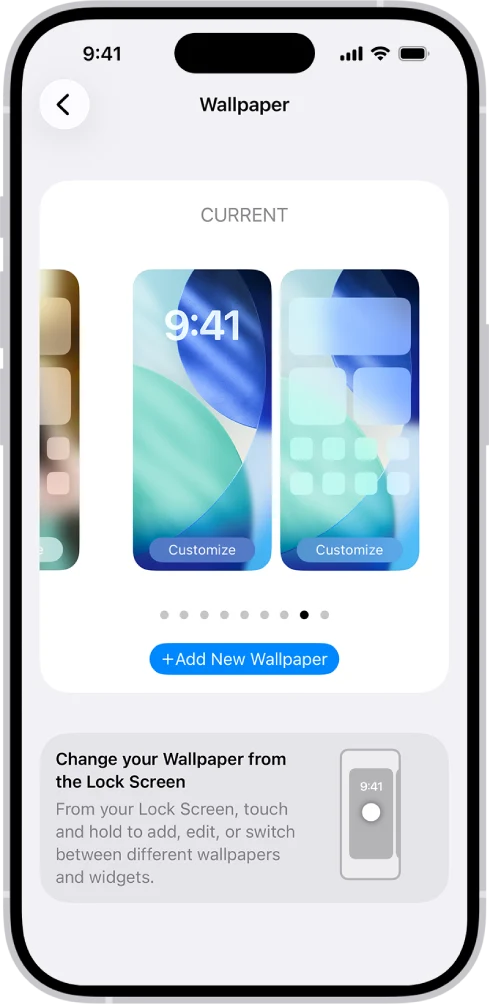
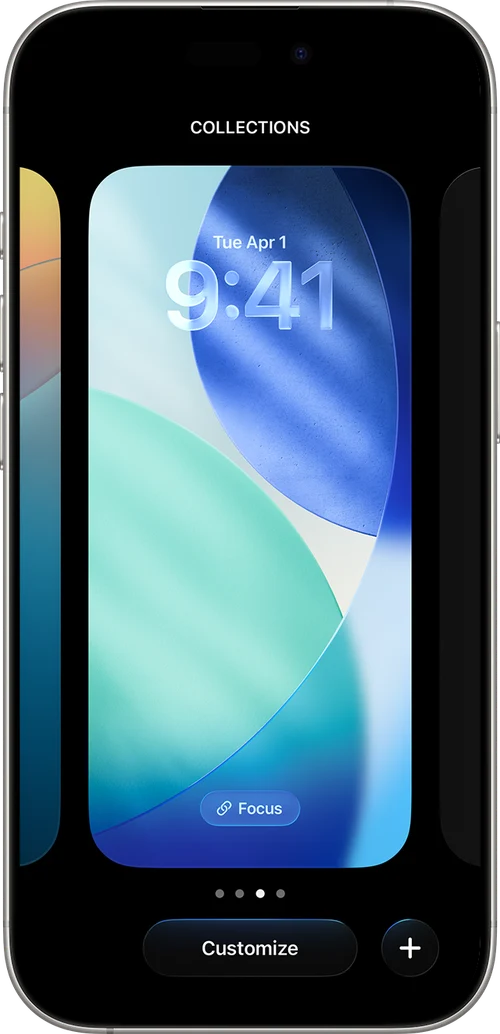
From Settings, open Wallpaper and choose Add New Wallpaper. Open Photos and choose the Live Photo category. Select your capture, then use the screen to preview its position and available controls. Turn on the playback control if you want the movement to run when you wake the phone. Tap Add and choose a wallpaper pair or customize the Home Screen separately.
Widgets and the lock screen clock cover part of the image. Give them room by moving the main subject slightly lower or choosing a frame with enough sky or a clean background. Use the setup preview to inspect the time, date, camera shortcut and photo behind them. Small movements are easier to follow if the clock and subject do not compete for the same area.
How to make your own Live Photo wallpaper
The simplest starting material is an original Live Photo captured on the iPhone. Take the picture while holding steady and leave clear space above the subject. A light breeze, moving reflections or a small expression can provide enough motion for a lock screen. Watch the full playback in Photos before selecting the wallpaper, as the movement can shift the subject away from its best position.
You can also start from a vertical still image and apply a modest camera move. A subtle zoom, an eased pull back or slow horizontal drift adds movement without making the screen feel busy. Choose one motion first and increase its intensity only if the change is hard to see. The preview on this page illustrates the effect on a short clip so you can see how the crop changes without editing a personal photo.
A 9:16 working crop is a good starting point for portrait output. Treat it as a working canvas and check the final crop on your own screen. Keep faces, signs and other details away from the outer edges. If the framing moves, start with extra breathing room. A bright object moving underneath the clock can make the time harder to read even when the initial still version looks balanced.
A generated motion clip needs an Apple-compatible paired still and movie and an import that preserves both. Play the imported result in Photos before setting it as wallpaper. The wallpaper chooser performs its own compatibility check, so also test animation after applying the new Lock Screen. Keep the original photo and clip in case you want to change the crop or adjust the motion later.
Choose a motion that feels natural on wake
A lock screen animation is usually seen briefly. Start with a movement that reads in the first second. A slow push toward the point of interest works especially well on a scene with space around the subject. With a thin horizon or a face close to the edge, use a smaller movement so the frame does not cut across the detail you want to keep.
Effects such as snow or a warm light leak work best when they support something already visible in the photo. Check the brightest and darkest frames and look for enough contrast around the time. Strong particle effects can make text difficult to see and take more storage to encode. Observe the sample with and without playing to decide whether the motion adds something to the image.
Photos with a natural depth cue, such as branches at the edge of a scene or an illuminated object against the sky, make gentle motion easier to notice. Keep fast flashes or dramatic changes out of a wallpaper you will see frequently. If motion feels distracting after applying it, reduce intensity or pick a quieter source and try again.
Live Photo Wallpaper Not Working
Check that the photo itself plays in Photos and that it appears in the Live Photo category in the wallpaper chooser. Open the wallpaper preview and check the playback control. The lock screen may keep a still when the source is ineligible or the play control is off. Try a known working Live Photo from the iPhone Camera to tell whether the issue follows the chosen asset.
A clip that arrived through a social network or standard photo attachment may have been converted to a JPG. Look for the original capture or ask for a copy that preserves its motion. A wallpaper preview can look animated in a webpage without producing an Apple Live Photo inside your iPhone library. Use the source asset with a compatible import path before choosing it in Settings.